TAB map
Guide
The TAB map is the full-screen view of the map you stand on. It shows your hero, your party, the NPCs and the gates. Press Tab to open it. Press Tab or Esc again to close it.
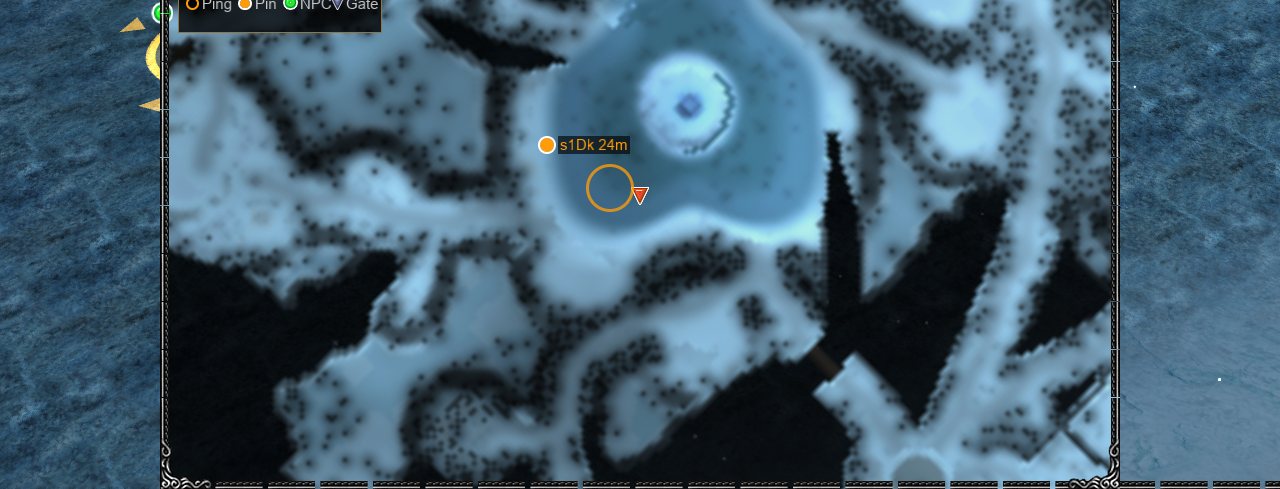
Opening it
- It does not open while a chat box or a yes/no prompt has focus, or while the system menu is up.
- While the map is open, other hotkeys do nothing. Clicks on the map do not walk the hero.
- The map covers the screen above the bar.
- It shows the map you are on. Pings and pins appear only on the map where they were placed.
What it shows
| Mark | Look |
|---|---|
| Your hero | A marker in your party colour. Gold when you are alone. |
| Party members | Markers in their party colours. |
| NPCs | Green dots. On a computer, hover one to see its name. |
| Gates | Blue arrows. On a computer, hover one to see "To" and the name of the map it leads to. |
| Pings | A ring with a pulse, in the colour of whoever sent it. |
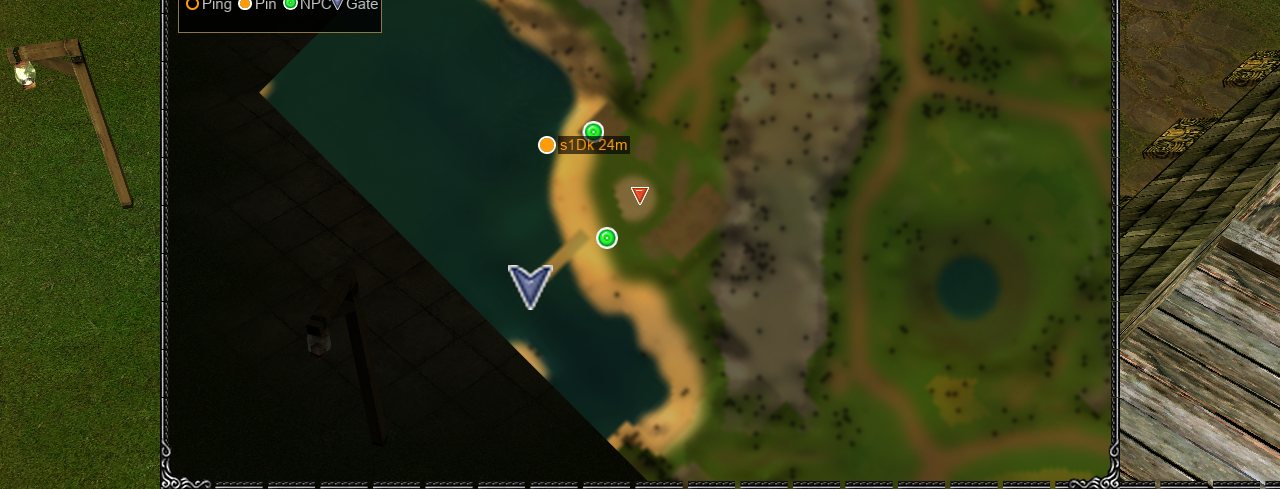
| Pins | A pin with its owner's name and distance, such as "name 23m". |
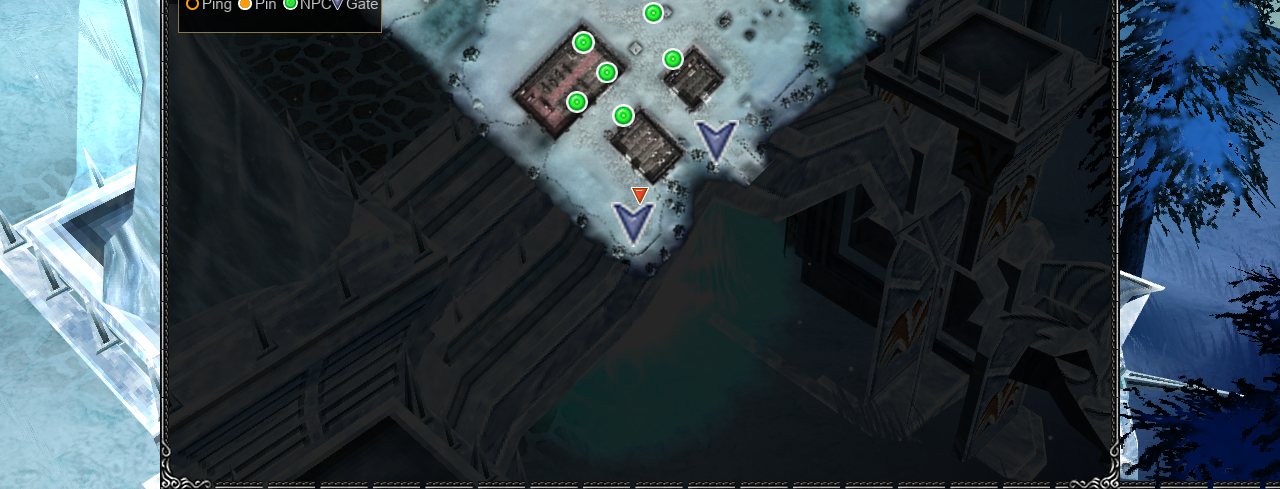
NPC and gate positions match the game world. Gate names use the map's in-game name, for example "To Noria". Gates to maps that are not in Moo Classic yet are hidden.
Controls
| Action | Computer | Phone |
|---|---|---|
| Zoom in and out | Scroll wheel, about the pointer | Pinch |
| Move the map | Drag | Drag with one finger |
| Go back to the opening view | Double-click | Pinch all the way out (shows the whole map) |
| Ping a spot on the TAB map | Ctrl+click | Tap |
| Pin a spot | Shift+click | Hold a finger still for half a second |
| Remove your pin | Shift+click, or right-click on your pin | Hold on your pin |
- You can zoom in to 4x. You can zoom out until the whole map fits above the bar.
- The legend lists the controls for the device you use. On a phone, the legend shows the touch controls once you touch the screen.
- Names of NPCs and gates show on hover, so they appear on a computer only. A tap on a phone sends a ping, so it does not show a name.
- The map goes back to the opening view each time it closes.
Pings
A ping marks a spot for your party.
- It lasts 4 seconds. You can send one every 2 seconds.
- On the open TAB map, hold Ctrl and click to ping. It is a ring in your colour that pulses.
- In the world it is a glowing disc with rings and a beam of light that rises from the spot. With the map closed, hold Alt and click empty ground to ping there. The hero does not walk.
- On a phone, tap the Ping button under the menu to ping where the hero stands. Drag the button to a spot to ping there, or onto the open TAB map.
- Every ping plays a short tone at the volume set in Options.
- When you are not in a party, a ping shows to you only and nothing is sent.
Pins
A pin marks a spot on the TAB map. Each player has one pin, and the party sees it.
- A pin lasts 15 minutes.
- It goes sooner when you move it, remove it, leave the party or log out.
- The pin's distance from your hero updates on the map and in the legend.
- Pins show on the TAB map only, never in the world.
- When you are not in a party, your pin shows to you only.
Party Colours
The legend lists the party at the top left, each name in its colour, with the distance to that player's pin beside it. The party list stays up to date while the map is open.
| Place in the party | Colour |
|---|---|
| Leader | Gold |
| Second | Cyan |
| Third | Green |
| Fourth | Pink |
| Fifth | Orange |
When you are alone, you are gold. A mark takes the colour of the player who placed it.